Offline AI Launcher — launch AI LLM neural networks on smartphone

10,000+ downloads on Google Play
Hello!
In my free time, I wrote an application with which you can download and run AI LLM neural networks such as Google Gemma, DeepSeek, Llama, Qwen and many others on your smartphone.
There are quite a lot of AI applications now, but the key difference of this one is that the models do not run in the cloud on servers but directly on the smartphone, from the model file, using the smartphone's processor and GPU.
It needs neither the internet nor a paid subscription: a smartphone with 6+ GB of RAM and a more or less modern processor is enough.
The application works with the HuggingFace repository, the largest repository of open-source models: there are millions of them, and thousands are large language models, or LLMs.
The application can open the most common model format, .gguf, with the llama.cpp engine; Google's formats for the MediaPipe engine, .task and .tflite (versions for MediaPipe are in Google's repositories); and .litertlm models with the LiteRT-LM engine.
For some models, such as Gemma 3n (an open model built on the same technology as Gemini), the MediaPipe engine supports image processing.
The app is made primarily for AI enthusiasts, but also for those who cannot use cloud models like ChatGPT or Gemini because of possible data leaks, and for people without constant internet access.
At the moment the app is free, but if I can't find a way to pay for my work on it, some of its features will become paid.
Who is this app for
This app is designed for:
- AI enthusiasts who want to download and try new models and different fine-tunes of them.
- People who for some reason cannot use the internet, for example, because they are in an area without it or on a plane.
- People who cannot use cloud models because they are afraid of data leaks, or because the company they work for prohibits cloud models.
How to use
The application has tabs: Chat, History, Models, Settings.
Chat
This tab contains a chat with the currently running model.
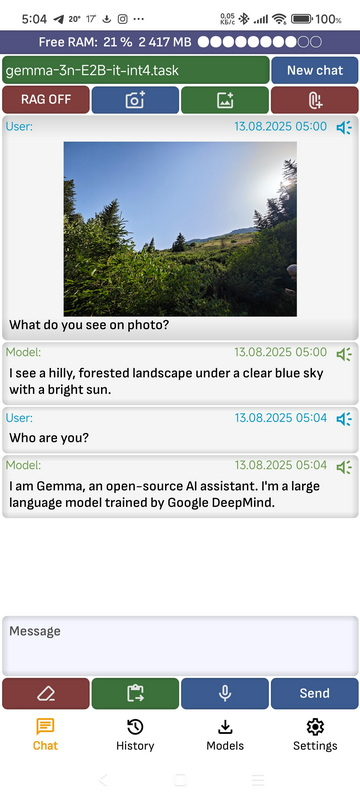
- New chat: Clears the history of the dialogue with the model.
- Share image icon: Adds a picture to the chat. Currently only the MediaPipe engine with the Gemma 3n and Gemma 3 4B, 12B and 27B models supports it.
- Make photo icon: Takes a photo and sends it to the chat. Currently only the MediaPipe engine with the Gemma 3n and Gemma 3 4B, 12B and 27B models supports it.
- Attach document icon: Attaches a document in pdf, txt, doc or docx format. As soon as the document finishes loading, it is added to the message context.
- RAG ON / OFF: Turns RAG on or off. RAG adds the results of a vector database search to the dialogue context.
- Clear text: Clears the text of the current message.
- Paste text: Pastes text from the clipboard at the cursor position in the message.
- Voice input: Starts voice input. When you finish speaking, the text is sent to the model if the "Automatically send text to model after voice recognition is complete" option is on in the app settings; otherwise send it with the Send button.
- Send: Sends the message to the model. The button text may change depending on the model's state.
- Microphone symbol on message: Reads the message aloud. You can set the speed in the app settings with "Voice speed". If "Automatically speak answers after generation" is on in the settings, the answer is read aloud automatically as soon as the model finishes generating it.
- Click on the message: Opens a menu where you can copy the message to the clipboard, share it with other apps or have it read aloud.
- Top panel: Shows which model you are talking to. It also shows the amount of free RAM if the "Print free ram on screens" option is on.
History
Shows a list of all dialogues with all models.
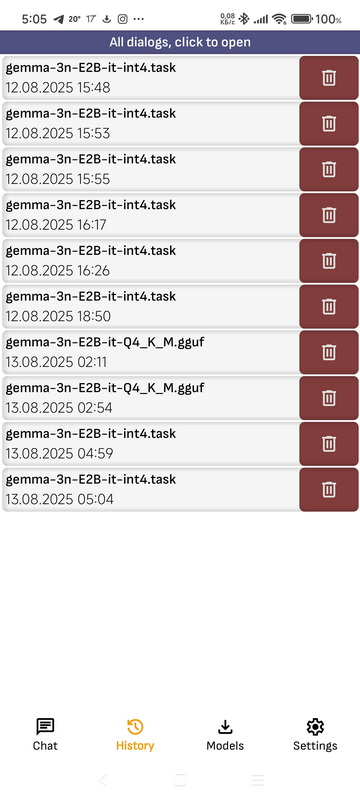
- Press to dialog: Opens the dialogue with the model.
- Delete: Deletes the dialogue. You can delete all dialogues at once in the app settings with "Clear chat history".
- Continue dialog: You can continue any dialogue; the continuation is saved as a new dialogue. When you press it, a list of all available models opens, and you can continue the dialogue with any of them, even if it was started with another model. Keep in mind that a model's context is limited: if the dialogue contains a lot of text, the context may run out, and part of the dialogue will be lost. You can set the context size in the app settings. The context size is counted not in characters but in tokens, and a token is usually part of a word.
Models
Here you will find all downloaded models, as well as models running in Ollama and LM Studio on your computer. Each model is a file in the application folder. You can open this folder in some file managers, such as ES Explorer, and add or remove models yourself.
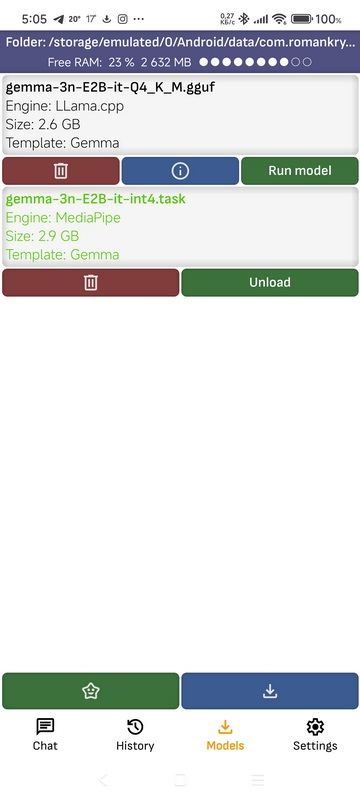
- Run model: Launches the model and unloads all the others. If the model runs on a computer in the local network, the app does not launch it but opens a dialogue with it: the model is controlled by the program it runs in.
- Show info: Opens a page with service information about the model.
- Click on the model: Opens the model in a supported file manager. Not all file managers can open files, and not all of them have permission to open another application's folder.
- Delete: Deletes the model. Models running in Ollama on a computer in the local network can be deleted too.
- Top panel: Shows the application folder with the models. Press the folder to open it in a file manager, copy its path or share it. It also shows the amount of free RAM if the "Print free ram on screens" option is on.
- Download models: Opens the page for downloading models from the HuggingFace repository.
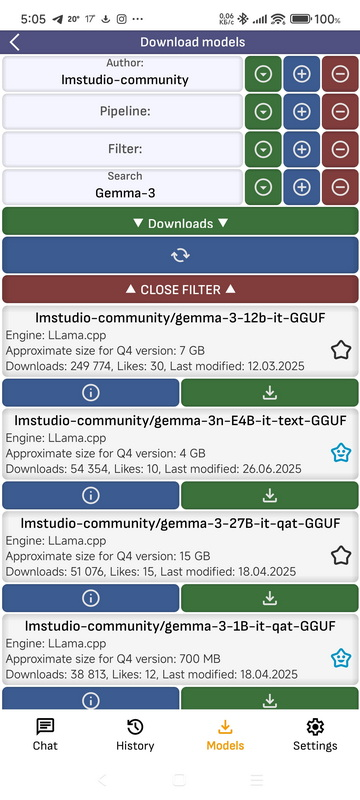
- Author: Filters the list of models by author. You can type text or pick a preset.
- Pipeline: Filters the list of models by pipeline. You can type text or pick a preset.
- Filter: Filters the list of models by filter. You can type text or pick a preset.
- Search: Filters the list of models by model name. You can type text or pick a preset.
- Sort parameter: The parameter to sort the list by.
- ▼: Opens the list of presets for the corresponding filter.
- +: Saves the value from the text field to the presets.
- -: Removes the value in the text field from the presets.
- Refresh: Updates the list.
- Close filter: Hides the filter panel.
- Open repo on model: Opens the model's page in the HuggingFace repository.
- Download: Opens the list of all model files available in the repository. Models with Q4 quantization, suitable for the Arm architecture, are marked in green. If your smartphone has a fast processor and the model is small, you can try to download and run a model with any quantization: the higher the quantization number, the more accurate the model. After you press it, the download status appears at the top of the screen; press the status to stop the download.
- Bookmarks: The models you have added to your bookmarks.
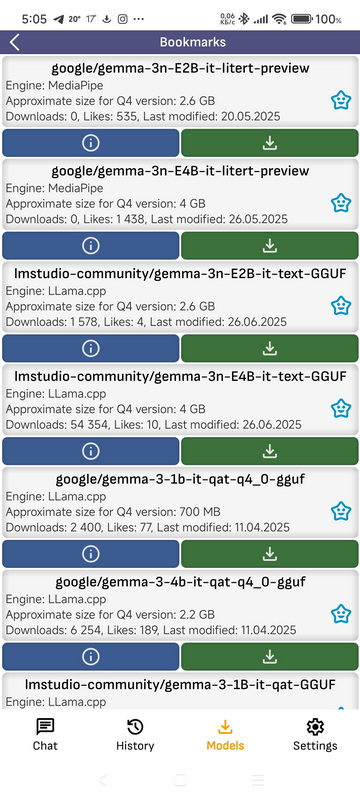
The bookmarks page has the same filters and buttons as the download page, except Bookmarks itself.
Settings
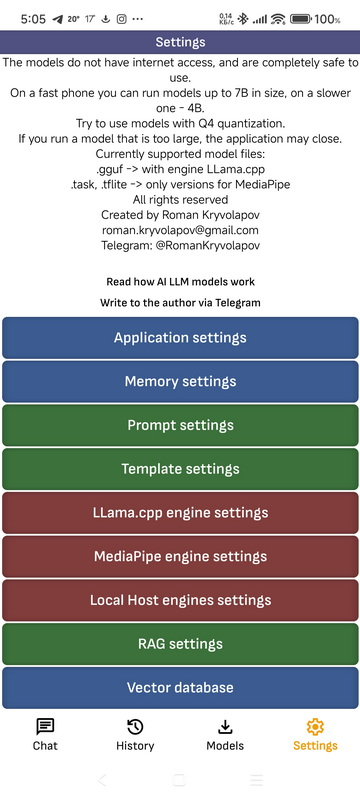
- Application Settings
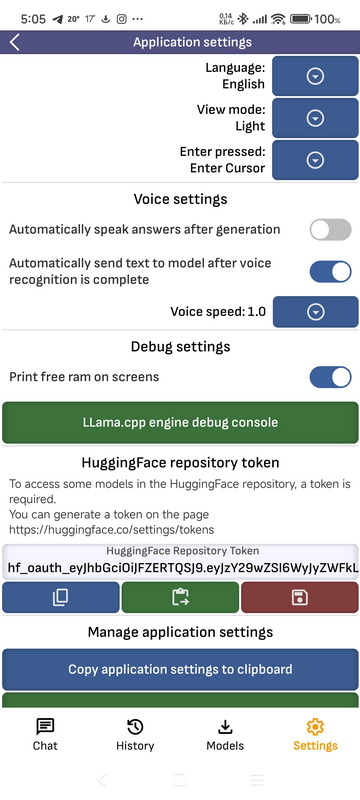
- Select language: Changes the language of the application. With System, the app follows the language of the device. Currently supported languages are English, German, French, Spanish, Polish, Russian and Ukrainian.
- View mode: The app theme: dark, light or system.
- Voice settings: Settings for reading aloud: automatically reading answers after generation, automatically sending the message after speech recognition, and the reading speed.
- Debug settings: Here you can choose whether to print the amount of free RAM on the screens and open the llama.cpp engine debug information page.
- LLama.cpp engine debug information page: After you turn on the switch, it shows the service information the engine prints to the console while loading the model and generating a response. Different debug levels are shown in different colors.
- HuggingFace Repository Token: Some models in the HuggingFace repository, such as Google's, need a token to download. You can enter the token manually. If you have not, the app supports signing in through the HuggingFace website: when a model requires authorization, the app tries to sign in through the website and adds the received token, which then appears in the token field.
- Copy / Paste application settings to clipboard: Copies all app settings to the clipboard in JSON format, pastes settings from the clipboard or sends them as a text message. Settings from different versions of the app may be incompatible.
- Review application: Rate the app on Google Play. Keep in mind that this is an experimental app: in some cases and with some models it may not work stably.
- Clear chat history: Deletes all saved messages.
- Restore default application settings: Removes all app settings. Sometimes an update removes the previous settings too: when critical errors related to the settings were found in the previous version and the new version is more stable.
- Memory settings
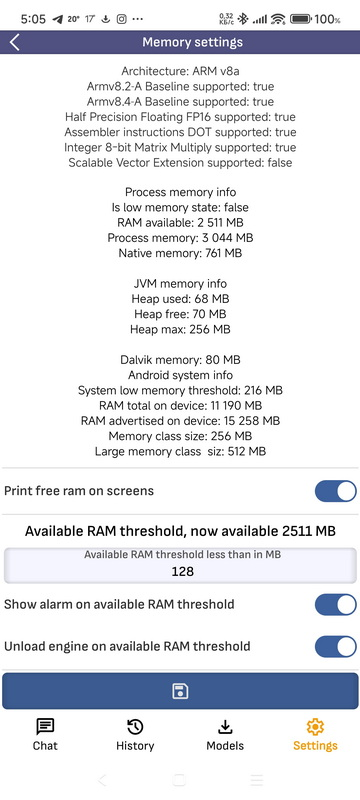
- Memory settings: Running LLMs on a smartphone requires a lot of free RAM. This screen shows the current state of free RAM and lets you set up notifications or unloading the model when memory runs low. The C++ engine code has a built-in function that takes the parameters from this screen and stops generation when memory gets too low, but sometimes memory runs out suddenly, and then the app closes. The model's context size directly affects how much RAM it uses; you can set it on the engine settings page. The memory page also shows the processor architecture and the supported instruction set.
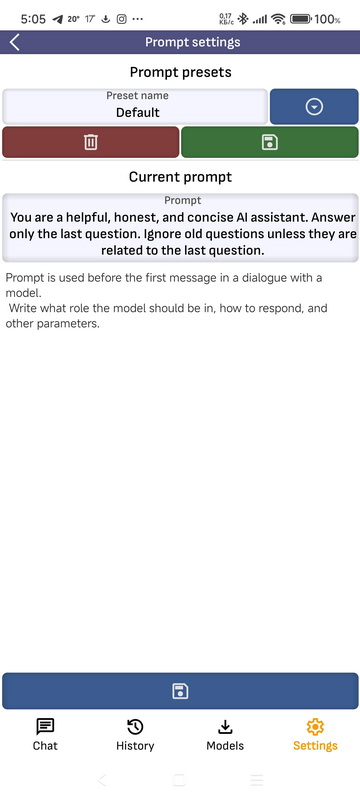
- Prompt settings: On this page you can create, edit, save to presets and delete prompts. The prompt is used by all engines and is added to the first message of the dialogue. The default prompt cannot be deleted, and when you change the language, it is reset to the default prompt for that language. If you want to use your own prompt, do not save it as the default one.
- Template settings: To talk to different models, the llama.cpp engine uses different templates; models of one family usually share a preset. On this page you can update presets or add new ones for different models. If a model is running in the app, opening this page selects its template.
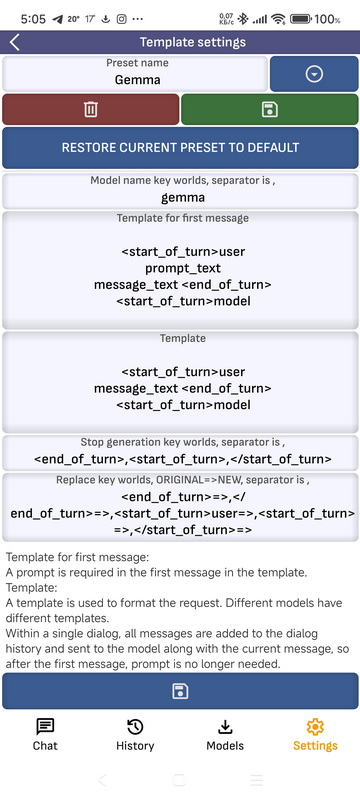
- Template name: A template is linked to a downloaded model through the "Model name keyword". If several models use the same preset, you can list their names separated by commas.
- Template for first message: The template for the first message must include the prompt. When a message is sent to the model, the
prompt_textparameter is replaced with the prompt andmessage_textwith the user's message. - Stop generation keyword: When the model outputs this keyword, the app stops generation. Some models need it: mistakes made while training or modifying them can make the model output wrong keywords that the engine does not recognize, and generation never ends. You can list several keywords separated by commas.
- Replace keyword: Some models return service keywords in the answer. Here you list the keywords to remove from the answer, in the format "keyword" -> "what to replace it with". For example, you can replace the service tag that marks the model's reasoning with words of your own.
- LLama.cpp engine settings: The llama.cpp engine settings, which you can save to presets. You can read more about the settings and what they affect in my articles on LLMs. Here are some of them:
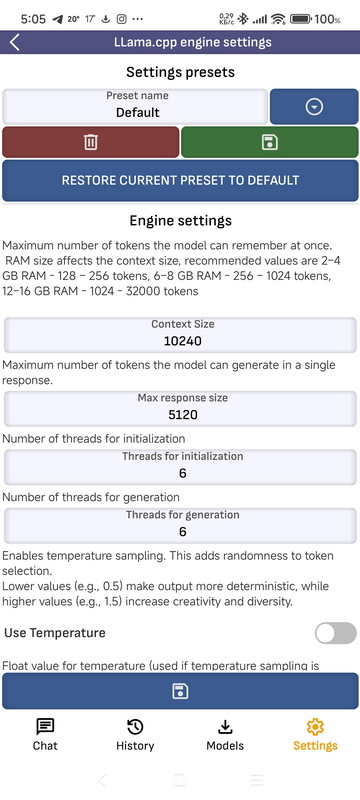
- Context size: The maximum number of tokens the model can "remember" at once. It depends on the amount of RAM; recommended values: 2–4 GB of RAM — 128–256 tokens, 6–8 GB — 256–1024 tokens, 12–16 GB — 1024–32000 tokens.
- Response size: The maximum number of tokens the model can generate.
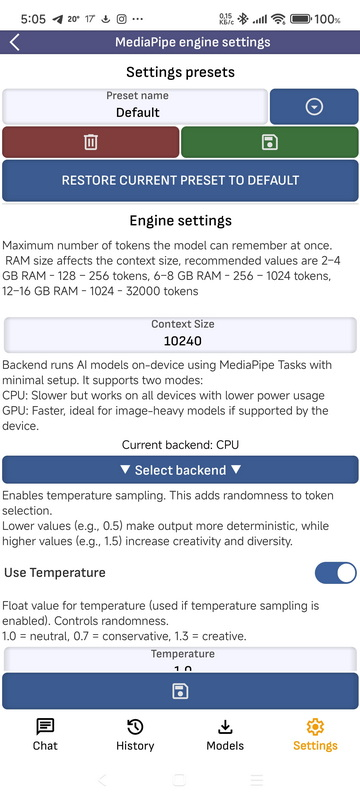
- Temperature: The temperature value (used if temperature sampling is on). Controls randomness: 1.0 = neutral, 0.7 = conservative, 1.3 = creative.
- Top-K: An integer Top-K value, used if
use_top_kis true. How many of the most likely tokens are kept. - Top-P: A float Top-P value, used if
use_top_pis true. The cumulative probability threshold (e.g., 0.9). - Threads: The number of threads used for initialization.
- Threads batch: The number of threads used for generation.
- Samplers: The choice of the sampler that processes the raw values.
- More: You can find more in my article Neural networks in simple terms.
- MediaPipe engine settings: The MediaPipe engine settings; they repeat some of the llama.cpp settings.
- LocalHost engine settings:
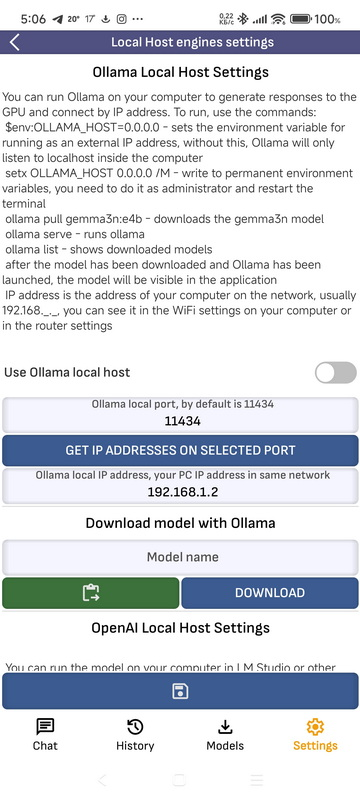
- Ollama LocalHost Settings: You can run Ollama on your computer so that answers are generated on its GPU, and connect to it by IP address. To set it up, use these commands:
$env:OLLAMA_HOST="0.0.0.0"sets the environment variable so that Ollama listens on the external IP address (without it, Ollama listens only to localhost inside the computer);setx OLLAMA_HOST 0.0.0.0 /Mwrites it to the permanent environment variables (run it as administrator and restart the terminal);ollama pull gemma3n:e4bdownloads the gemma3n model;ollama servestarts Ollama;ollama listshows the downloaded models. Once the model is downloaded and Ollama is running, the model appears in the app. The IP address is your computer's address on the network, usually192.168.*.*; you can find it in your computer's Wi-Fi settings or in the router settings. - OpenAI LocalHost Settings: You can run a model on your computer in LM Studio or another program compatible with the OpenAI API, so that answers are generated on its GPU, and connect to it by IP address. The IP address is your computer's address on the network, usually
192.168.*.*; you can find it in your computer's Wi-Fi settings or in the router settings. To make LM Studio listen on a port of your computer, select LM Studio → Developer → Settings → Serve on Local Network and start it by setting the Status switch to Running. - RAG settings:
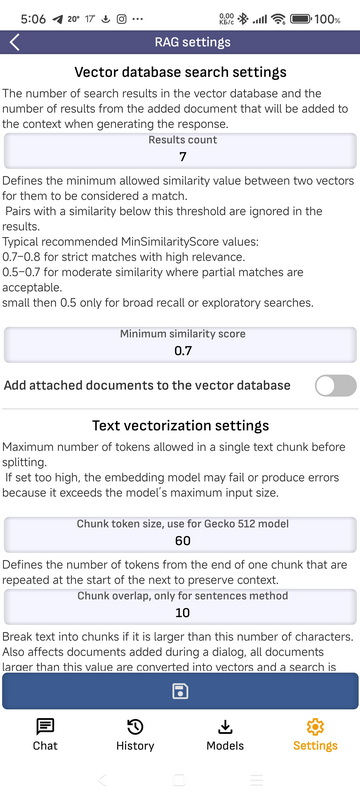
If you add a document to the dialogue with the model and its size does not exceed the limit set on the settings page, the whole document is added to the dialogue context when the answer is generated. If it is larger, it is split into parts, each part is turned into a vector, and when the answer is generated, the matching vector is found and its text is added to the dialogue context.
- Results count: How many results from the vector database search and from the attached document are added to the context when the answer is generated.
- Minimum similarity score: The minimum similarity between two vectors for them to count as a match; pairs below this threshold are ignored. Typical values: 0.7–0.8 for strict, highly relevant matches; 0.5–0.7 for moderate similarity where partial matches are fine; below 0.5 only for broad recall or exploratory search.
- Add attached documents to the vector database: A document attached during a dialogue is also added to the vector database. Then, with RAG on, every request searches the vector database and adds the matching document to the context of the question.
- Chunk token size: The maximum number of tokens in one text chunk before it is split. If it is too high, the embedding model may fail or return errors, because the chunk exceeds the model's maximum input size.
- Chunk overlap, only for sentences method: How many tokens from the end of one chunk are repeated at the start of the next one to keep the context.
- Split chunks of text larger than this value into pieces: Text longer than this number of characters is split into chunks. It also applies to documents added during a dialogue: every document larger than this value is turned into vectors and searched by vectors. If the document is too large, the LLM runs out of context and cannot generate an answer.
- Chunk max symbols limit: Limits the number of characters in a chunk. With the Sentences method, sentences can be long, and that would crash the embedding model.
- Vector database settings:
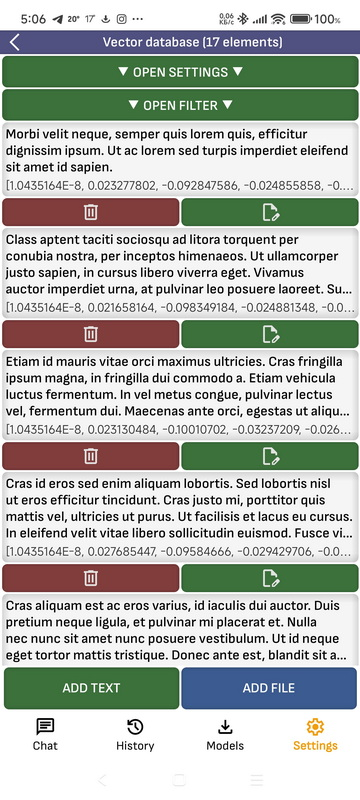
You can add a document or text to the vector database manually. When it is added, the document is split into parts, and a vector is generated for each part. If RAG is on in the dialogue with the model, every question you ask is turned into a vector, matching document fragments are found in the vector database, and their text is added to the context of your question. You can also check which documents the database finds for a query text: the filter is there for that.
Future features
- LocalHost Server API: The app will work as a server compatible with the OpenAI API and the Ollama API.
- Function calling: Support for the On-Device Function Calling SDK. It is disabled for now: the SDK does not support some functions that other parts of the app need.
Current engine implementations
llama.cpp
- Wikipedia: en.wikipedia.org/wiki/Llama.cpp
- GitHub: github.com/ggml-org/llama.cpp
- Android: github.com/ggml-org/llama.cpp/tree/master/examples/llama.android
- How the engine is arranged inside: llama.cpp AI LLM Engine — How It Works
LiteRT-LM
Google's engine for .litertlm models. It is integrated into the app and is very fast.
- GitHub: github.com/google-ai-edge/LiteRT-LM
- Kotlin guide: ai.google.dev/edge/litert-lm/android
- HuggingFace: huggingface.co/litert-community
- How it compares with other engines, with integration code: Running LLMs locally on an Android smartphone
MediaPipe / TensorFlow
- Google guide: ai.google.dev/edge/mediapipe/solutions/guide
- GitHub: github.com/google-ai-edge/mediapipe
- HuggingFace: huggingface.co/litert-community
- Kaggle model: kaggle.com/models/google/gemma-3/tfLite
- Maven: mvnrepository.com/artifact/com.google.mediapipe
Local Host Engines
- Ollama: The Ollama API is supported: you can run Ollama on a PC and talk to the model from the app.
- OpenAI API: The OpenAI API is supported: you can run LM Studio or any OpenAI API compatible application on your PC and talk to the model from the app.
Future Integrations
MLC LLM
So far only experimental use: models on HuggingFace consist of many files, which is inconvenient, and the engine is poorly optimized for Android, so models run slower than with llama.cpp and MediaPipe. In the future I plan to repackage some models into a specialized single-file format and upload them to HuggingFace.
- Repository: github.com/mlc-ai/mlc-llm
- Deploying the CLI: llm.mlc.ai/docs/deploy/cli.html
- Android deployment: llm.mlc.ai/docs/deploy/android.html
- Compiling models: llm.mlc.ai/docs/compilation/compile_models.html
- HuggingFace: huggingface.co/mlc-ai
- Example model: huggingface.co/google/gemma-3-1b-it-qat-q4_0-unquantized
ONNX
So far only experimental use: models on HuggingFace consist of many files and cannot be packed into one, so the engine is inconvenient to use, and it runs slowly on Android.
- Wikipedia: en.wikipedia.org/wiki/Open_Neural_Network_Exchange
- ONNX Runtime for GenAI (Java): github.com/microsoft/onnxruntime-genai/tree/main/src/java
- API documentation: onnxruntime.ai/docs/genai/api/java.html
- HuggingFace: huggingface.co/onnx-community
- Maven: mvnrepository.com/artifact/com.microsoft.onnxruntime
PyTorch
I plan to add it.
- Wikipedia: en.wikipedia.org/wiki/PyTorch
- Official website: pytorch.org
- Repository: github.com/pytorch/pytorch
Additional resources to read
- Large language model (Wikipedia)
- List of large language models (Wikipedia)
- Llama (language model) (Wikipedia)
- Language model benchmark (Wikipedia)
- Understanding Large Language Models in Your Pockets: performance study on COTS mobile devices (arXiv)
Architecture
- Modular Clean Architecture by Robert C. Martin
Tech stack
- Languages: Kotlin, Java, C++
- Build system: Gradle Groovy DSL, CMake